
PayUMoney Payment Gateway
PayUMoney Payment Gateway: It allows them to pay instantly without re-entering the same data for every transaction.
TL;DR: PayUMoney Payment Gateway: It allows them to pay instantly without re-entering the same data for every transaction.
This guide covers: How addon works
PayUMoney Payment Gateway addon for CS-Cart allows admin to easily integrate PayUMoney on their site. Customers can make payments smoothly. It also offers a superfast checkout mode, letting users securely save card, shipping, and billing details for instant payments without re-entering information.
Features:
- Easy to Use – Easily connects PayU Money with the CS-Cart store.
- Multiple Payment Options – Supports net banking, debit cards, PhonePe, and more.
- Secure Transactions – Uses unique security codes (Key & Salt) for safe payments.
- Automatic Currency Conversion – Converts currency based on admin settings.
- Fast Checkout – Users can save card details for quicker payments.
- Order Status Updates – Automatically marks payments as successful or failed.
- Admin Control – Admin can configure and manage payment settings easily.
- 24/7 Payment Processing – Works anytime for global transactions.
- Optimized for Quick Payments – Ensures smooth and fast transaction processing.
- CS-Cart Support info: The addon is well integrated with CS-Cart Multi-Vendor and can be used with its standard, Plus, and Ultimate Versions.
How to install Addon
https://store.ecarter.co/blogs/how-to-install-addon/
How addon works
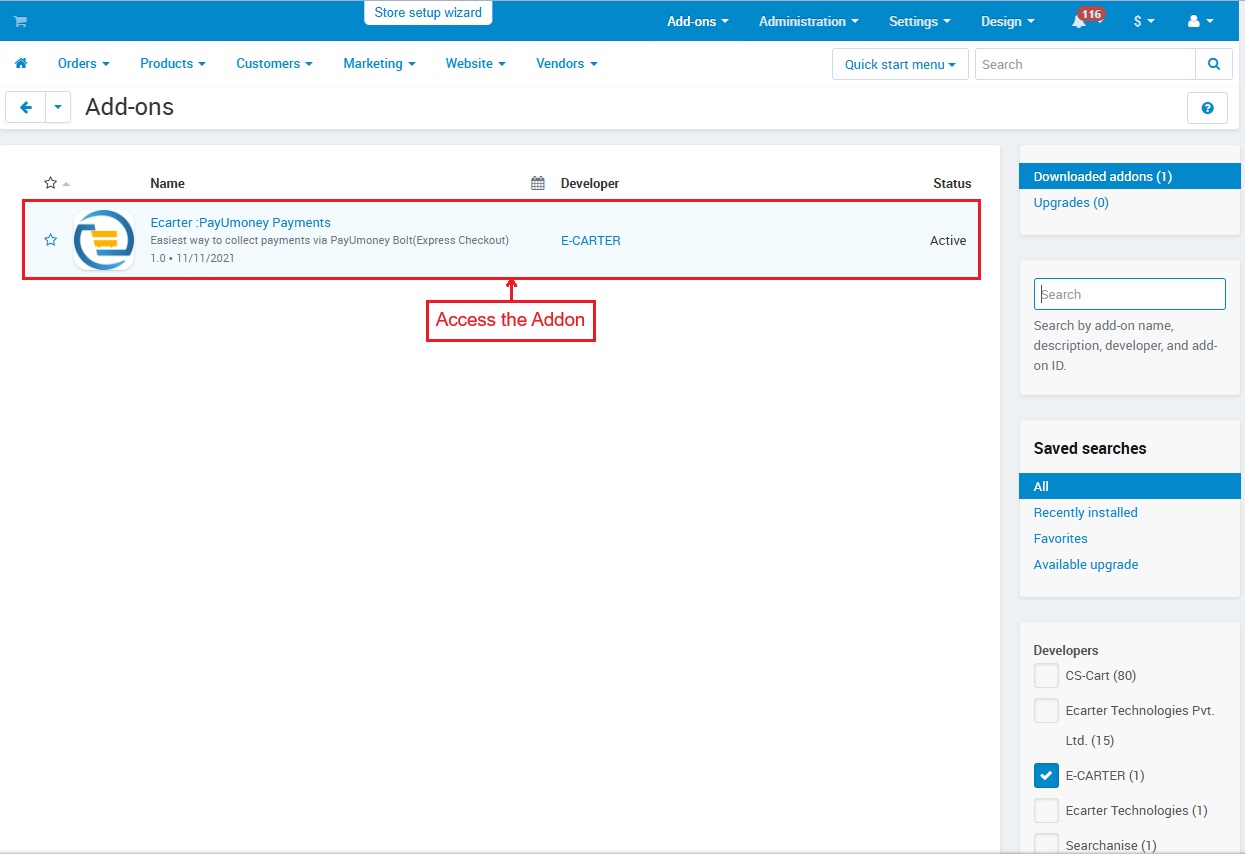
- Access the Addon
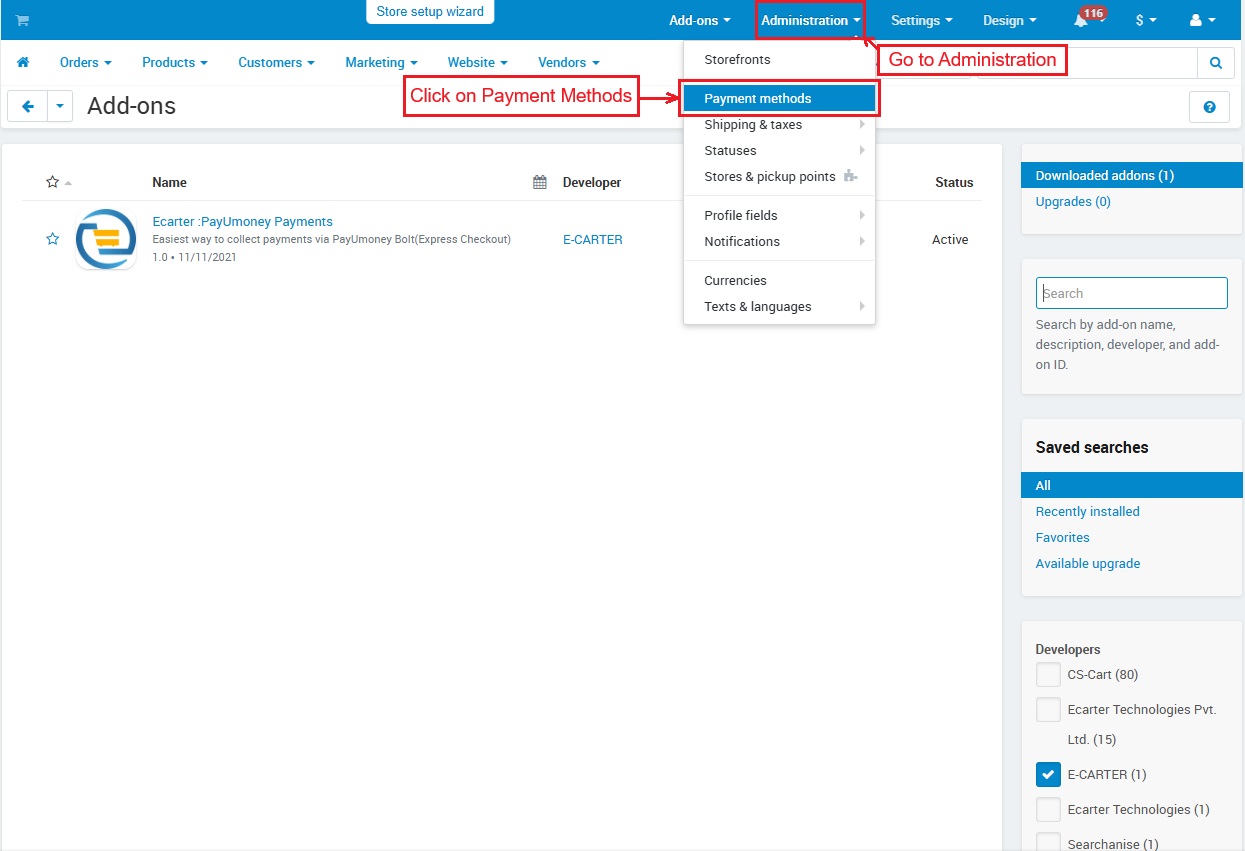
- Go to >> Administration
- Click on >> Payment Methods
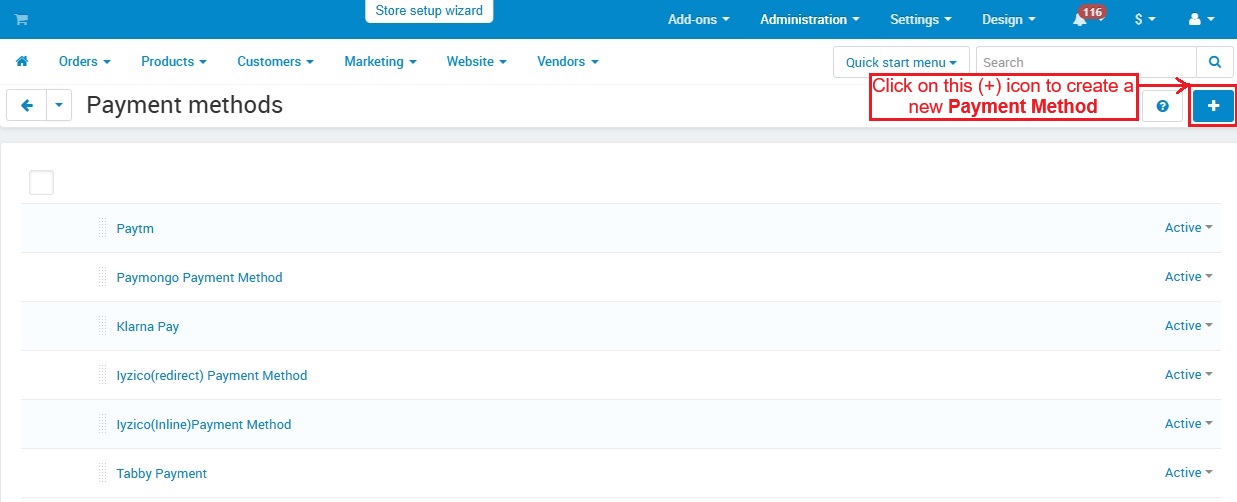
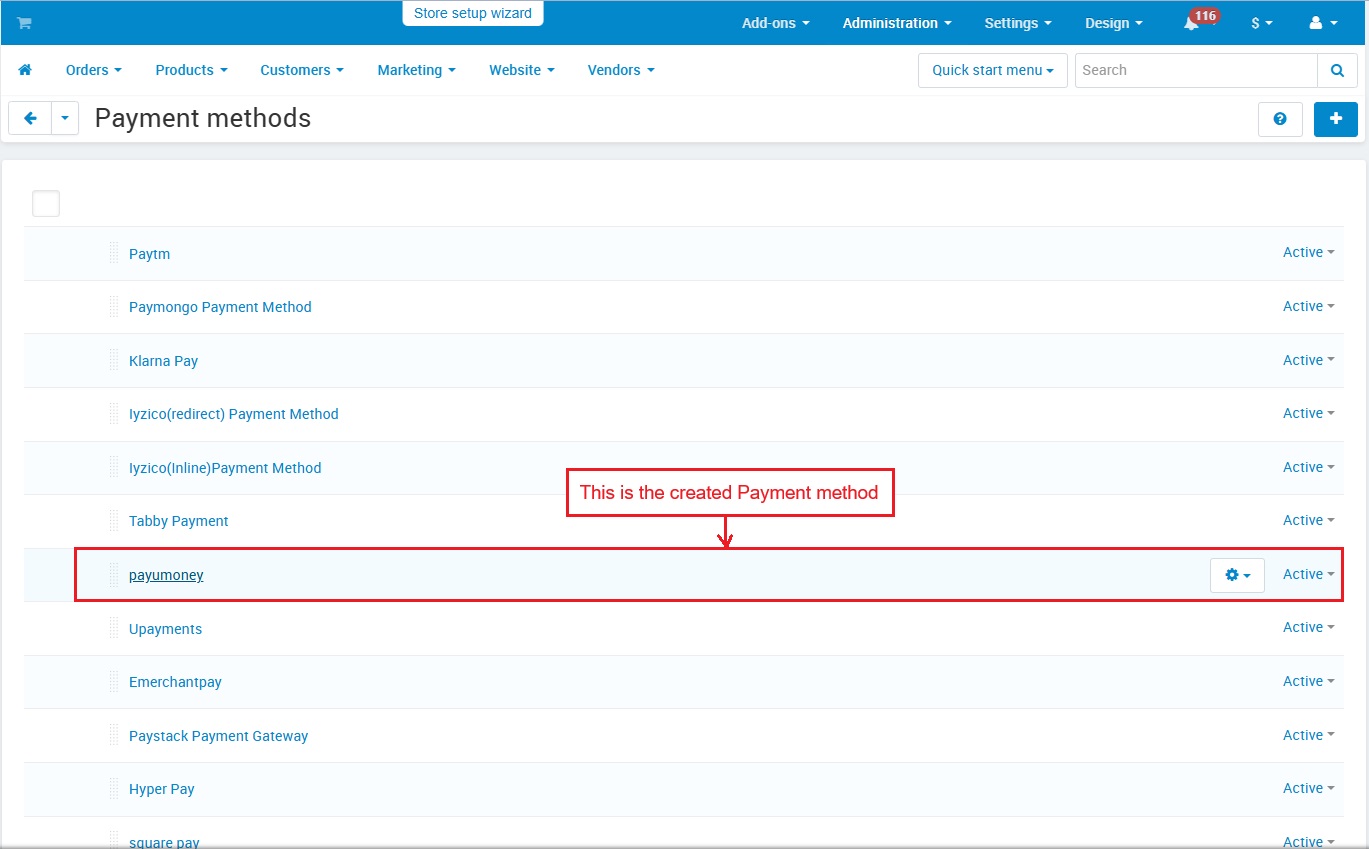
- This Payment methods page shows all created payment methods. Click the (+) icon to add a new one.
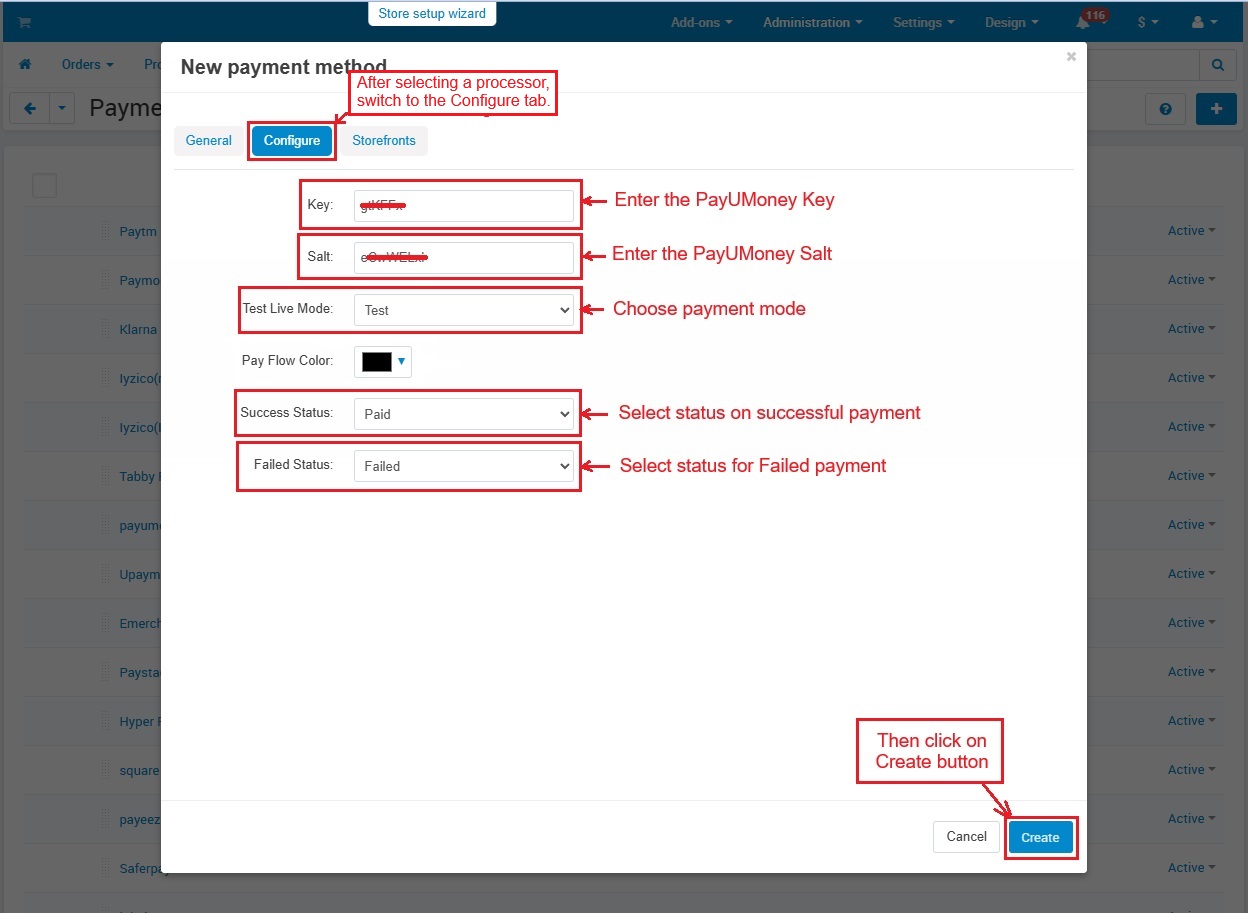
- In the General tab, Enter the Name of the payment method and Choose the Payment Processor.
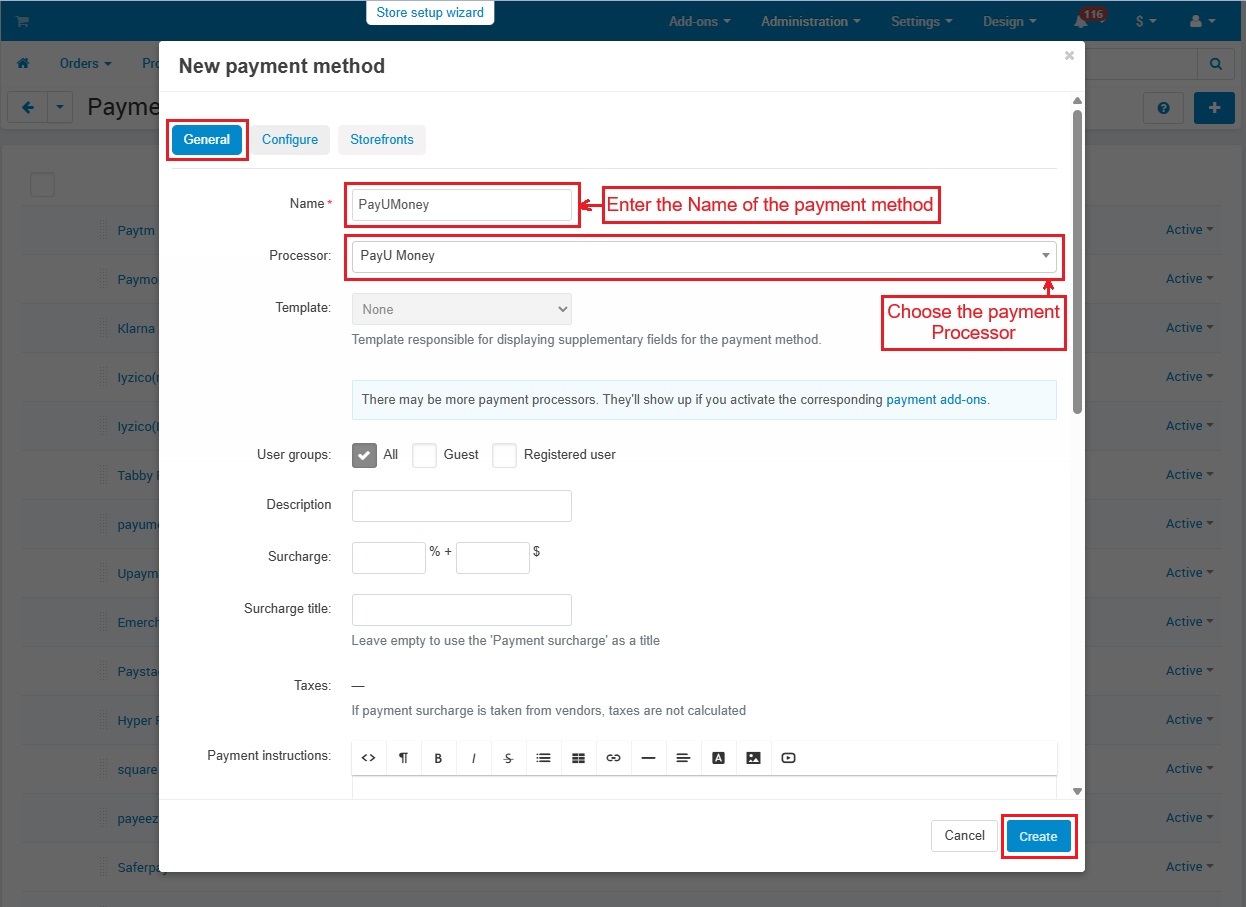
- After selecting a processor, switch to the Configure tab.
Key: Enter the key which is a unique code needed to connect with PayUMoney.
Salt: Enter another security code used for safe transactions.
Test Live Mode: Choose payment mode.
Success Status: Sets what happens when a payment is successful.
Failed Status: Set what happens if a payment fails.
- Then, Click on >> Create Button.
- This is the created payment method.
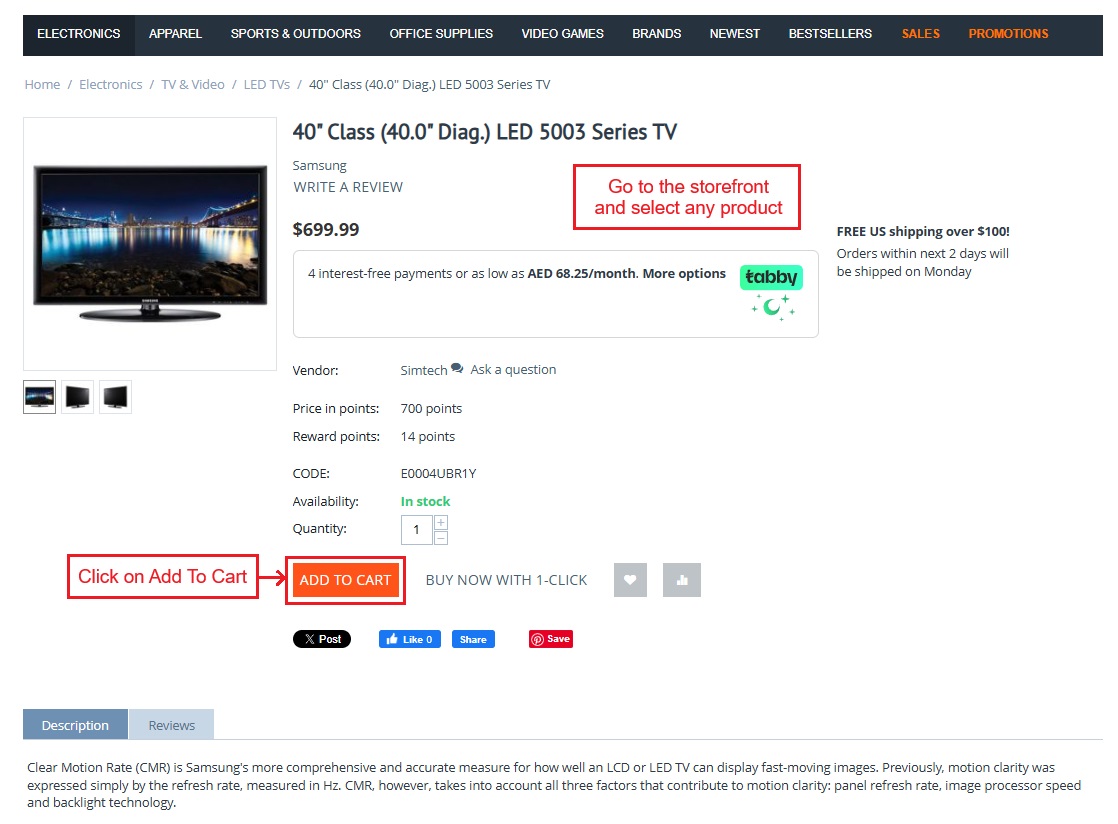
- Go to the Storefront and select any Product.
- Click on >> Add To Cart
- Click on >> Checkout button.

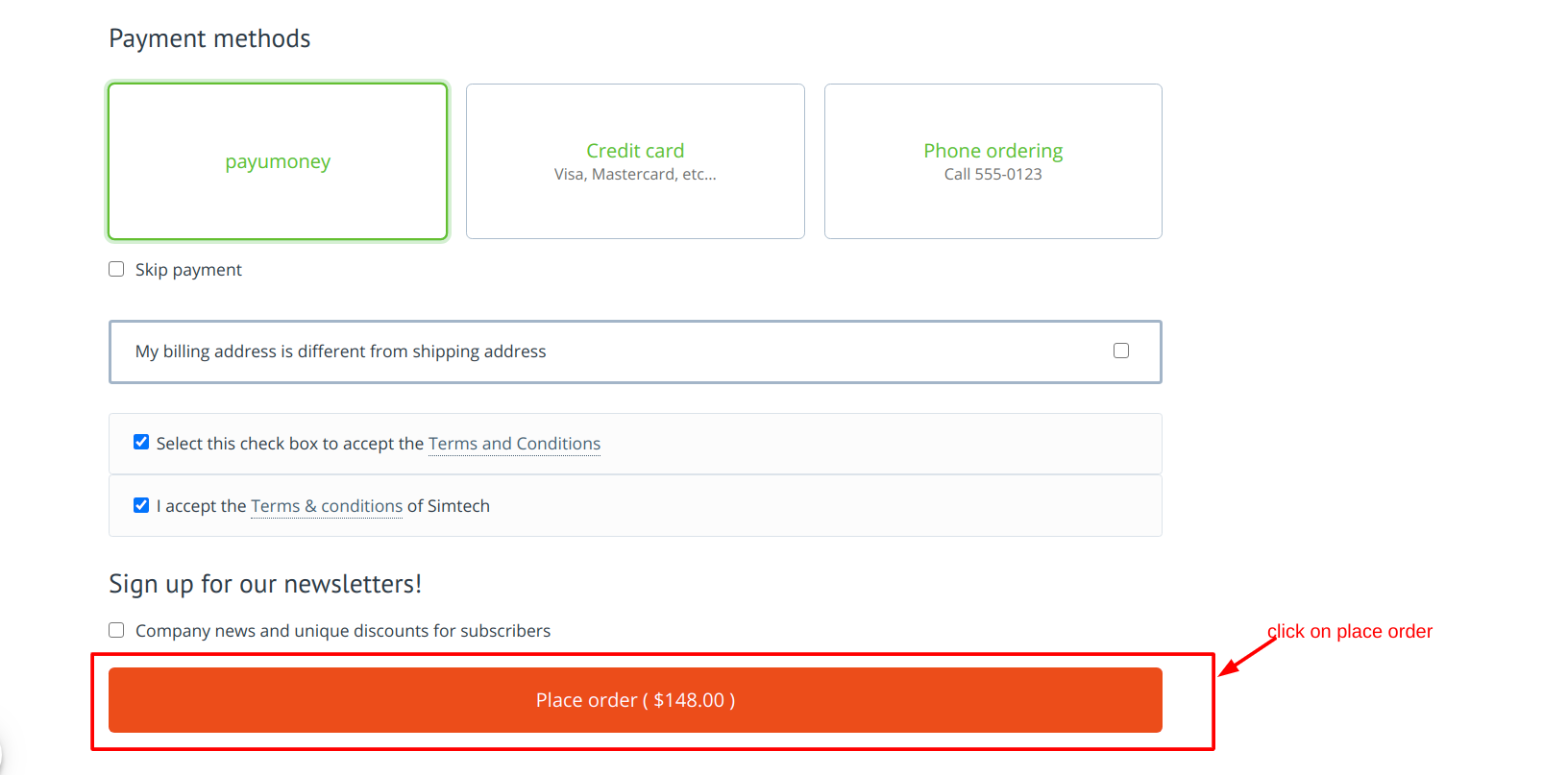
- Now, select payUmoney as a payment method at checkout.
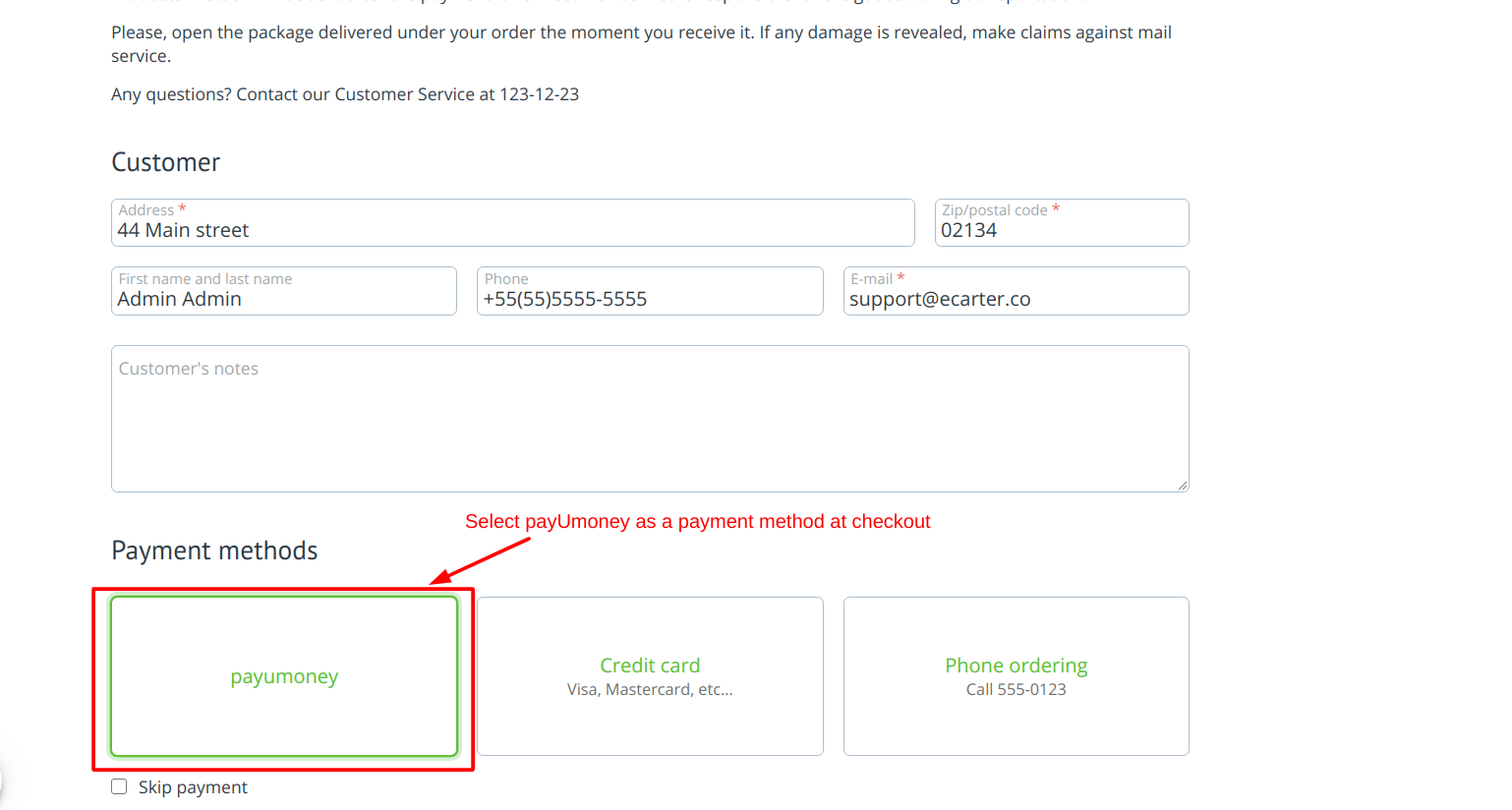
- And, click on Place Order.
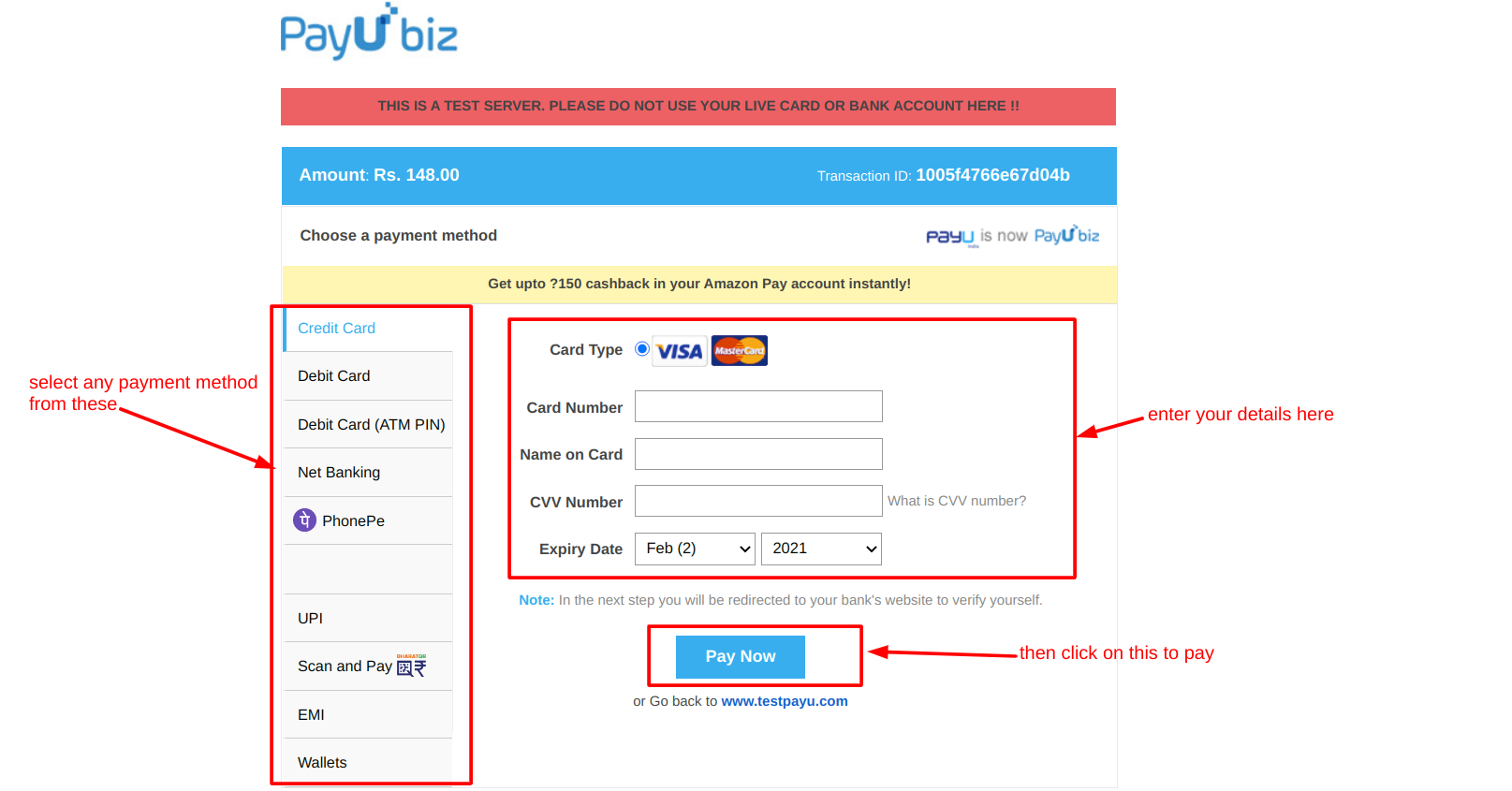
- On this page, now you need to select any payment method like Net banking, Debit card, Phonepe etc.
- Enter >> Card details.
- Then, click on >> Pay Now button.
- In the next step, you only need to enter the OTP and press the Pay button. A notification will appear confirming that your payment was successful.
- Also, order details in both the admin panel and storefront will show you the complete payment information.
Tutorial Link:
Addon-Version:
Version-1.0
Supported Versions:
CS-Cart, CS-Cart Multivendor 4.8.x, 4.9.x,4.10x,4.11x,4.12,4.13x, 4.14x, 4.15x, 4.16x, 4.17x, 4.18x
Support:
This app is developed and published by Ecarter Technologies Pvt. Ltd., a CS-Cart developer. You are guaranteed a quality add-on supported by future versions. If you need help, please contact us via email support@ecarter.co
Need modifications or any assistance? Please, feel free to contact us via email at support@ecarter.co
Kajal is a Technical Content Writer at Ecarter Technologies. She writes technical documentation and in-depth guides on e-commerce platforms, mobile commerce and AI in online retail.